Word Search Solver Guide: How to Find Every Hidden Word Fast
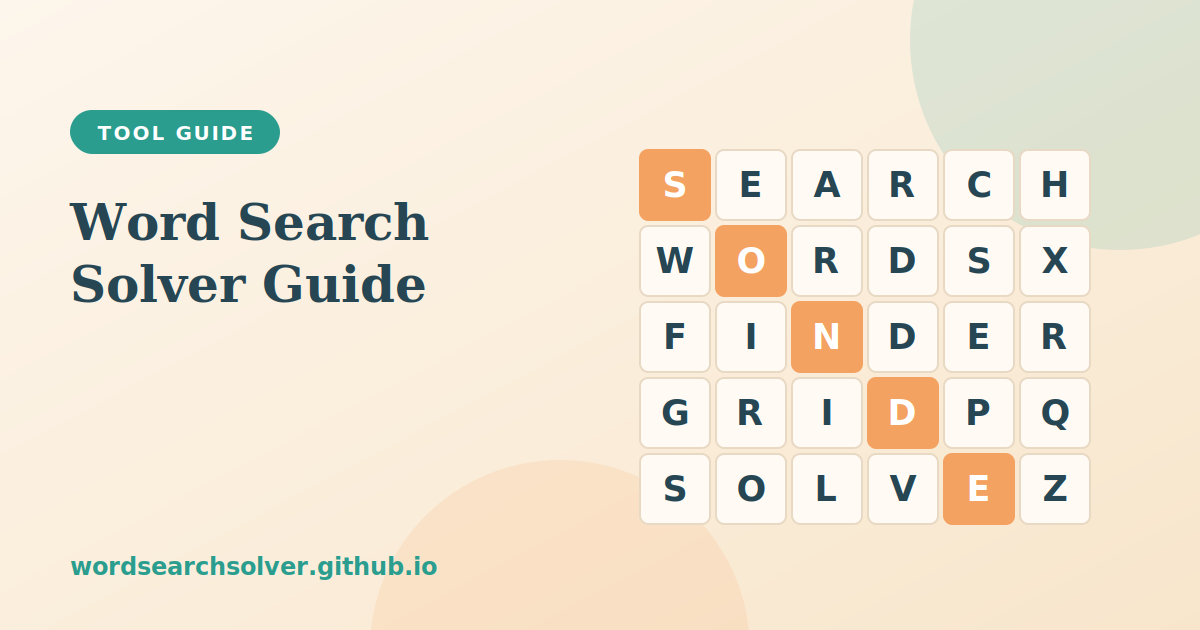
Almost everyone has stared at a grid of letters for ten minutes, certain that the last word on the list is in there somewhere. It might be hiding backwards along the bottom row, or running diagonally from the top corner, or tucked behind a cluster of letters that all look alike. A word search solver removes the guesswork. You paste the grid, list the words, and the tool shows exactly where each one is.
This guide explains how the Word Search Solver works, how to prepare your grid so it reads correctly, what the eight search directions mean, and how to use the tool as a learning aid rather than a shortcut. Whether you are a student checking homework, a teacher building an answer key or a puzzle fan who simply refuses to give up, you will find practical advice below.
What Is a Word Search Solver?
A word search solver is a small program that takes two inputs, a rectangular grid of letters and a list of target words, and returns the position of every word it can find. Instead of scanning with your eyes, which tire quickly and tend to follow familiar left-to-right reading habits, the program checks every cell as a possible starting point and tests every direction from that cell.
The method is simple but thorough. For each word, the solver looks at each letter in the grid. When a letter matches the first letter of the word, it tries to read the rest of the word in each of eight directions. If all the letters line up, it records the starting row, starting column and direction. Because the grid is small, this happens in a few milliseconds, even for long word lists.
Our version runs entirely in your browser. Nothing is uploaded, nothing needs to be installed, and there is no account to create. You open the page, paste your puzzle and read the results.
How to Use the Word Search Solver Step by Step
The tool is built so that a first-time visitor can finish a puzzle in under a minute. Follow these steps:
- Open the Word Search Solver and find the grid box at the top of the page.
- Type or paste your grid with one row per line and the letters separated by spaces. A row such as S E A R C H is read as six separate cells.
- Enter the words you are looking for in the second box, either one per line or separated by commas. Upper and lower case do not matter.
- Press the solve button. Each word you entered is highlighted on the grid in its own colour.
- Read the results list. For every word you get the starting row, starting column and direction. Hover over a result to focus on that word in the grid.
- Use the copy button to place all the locations on your clipboard if you want to paste them into a document or message.
If a word is not found, the tool tells you so. That usually points to a typing mistake in the grid or the word list, and the next section explains how to avoid it.
Formatting Your Grid Correctly
Nine out of ten failed searches come from formatting rather than from the puzzle itself. A few small habits make the difference.
- Keep every row the same length. If one row has fourteen letters and the next has thirteen, the grid is no longer rectangular and some diagonals will break. Count the letters in each row before you solve.
- Separate letters with spaces. Pasting a row as one block of text can make the solver treat it differently from the printed puzzle.
- Watch for look-alike letters. When you copy a grid by hand from a printed page, it is easy to confuse I and L, O and Q, or U and V. If a word you can see on paper is not found, re-check those letters first.
- Remove punctuation from the word list. Hyphens, apostrophes and spaces inside words are normally not part of the grid, so type ICECREAM rather than ice-cream if the puzzle prints it that way.
- Trim trailing blank lines. Extra empty lines at the end of the grid can be read as empty rows.
If you are working from a photograph or a scan, copy the text out slowly and check it against the original. A grid that is typed correctly will give you a perfect result every time.
The Eight Search Directions Explained
Traditional word searches hide words in up to eight orientations, and the harder the puzzle, the more of them it uses. Children's puzzles often limit the words to left-to-right and top-to-bottom. Puzzle books for adults use all eight. The solver checks every one of them at once.
| Direction | How the word reads | Why it is easy to miss |
|---|---|---|
| Right | Left to right along a row | Easiest to spot; matches normal reading |
| Left | Right to left along a row | Backwards words are skimmed over |
| Down | Top to bottom along a column | Eyes scan rows more than columns |
| Up | Bottom to top along a column | Reads upward, which feels unnatural |
| Down-right | Diagonal toward the bottom right | Diagonals break the visual row pattern |
| Down-left | Diagonal toward the bottom left | Often the hardest to find by eye |
| Up-right | Diagonal toward the top right | Hidden among the lines of the grid |
| Up-left | Diagonal toward the top left | Reverse of the most common diagonal |
Notice that four of the eight directions are simply the reverse of the other four. A word that reads RIGHT in one puzzle might read LEFT in another, and the letters are identical. That is why puzzle designers use reversed words so often: they look different, but they cost the designer nothing.
How to Solve a Word Search by Hand (and Why the Solver Still Helps)
Half the fun of a word search is the hunt, so you may prefer to solve most of the puzzle yourself and use the tool only for the last stubborn words. These techniques make that approach much faster.
Hunt for the rarest letter first
Instead of scanning for the first letter of each word, look for the least common letter inside it. Q, Z, X, J and K appear rarely in a grid. If you are searching for QUARTZ, find every Q and read outward from there. You will check far fewer cells.
Look for letter pairs
Many words contain unusual pairs such as KN, PH, TH or GH. Scan for the pair rather than for single letters. Your eyes can pick up a two-letter pattern surprisingly quickly once you decide to look for it.
Work in one direction at a time
Search the whole grid for horizontal words, then vertical ones, then diagonals. Switching direction constantly is what causes people to miss words. Doing a full pass in each direction is slower on paper but more reliable.
Cross words off as you go
Mark each word on the list as soon as you find it, and lightly circle it in the grid. As the list shrinks, the remaining words become much easier to spot. If you reach the final two or three and cannot find them, paste the grid into the solver and check where they are hiding.
Who Uses a Word Search Solver?
The tool was designed for a wide range of people, and each group uses it a little differently.
- Students use it to check their answers before handing in classroom puzzles, and to understand why a word they missed was hard to see.
- Teachers use it to confirm that every word on a worksheet really is in the grid, and to produce an answer key without searching by hand. Pair it with the Word Search Generator guide if you build your own puzzles.
- Parents use it to help children who are stuck, showing the location of one word at a time rather than giving away the whole puzzle.
- Puzzle fans use it to settle debates, check unusual puzzles from magazines and confirm that a stubborn word is not simply missing from a misprinted grid.
- Caregivers and therapists use it to prepare activity sessions where a printed answer key is needed in advance.
Using the Solver as a Learning Tool
A solver does not have to end the puzzle. Used thoughtfully, it can teach you to spot words faster. After the tool highlights a word you missed, look at where it was. Was it reversed? Was it diagonal? Was it surrounded by letters that looked like a different word? Over time you will notice your own blind spots. Most people find that they miss up-left diagonals and upward vertical words far more often than any other direction.
For vocabulary practice, ask learners to predict the direction before they press solve. For each word on the list, they guess whether it reads right, left, up, down or diagonally, then check their prediction against the result. It turns a simple answer key into a short pattern-recognition exercise.
Pair the Solver With Other Word Tools
Once you are comfortable with the solver, the rest of the site makes a natural next step. If you want to make your own puzzles, the Word Search Generator builds a grid from any list of words, and the Printable Word Search exports a clean sheet with an answer key. When you need words to put in a puzzle, the Random Word Generator fills a list in seconds.
If you enjoy solving but want a different kind of challenge, try the Crossword Solver for pattern-based clues, or the Anagram Solver for rearranging letters into words. Each tool is free, mobile friendly and built to work without sign-up.
A final piece of advice: do not treat a solver as cheating. Used to check, to learn and to rescue a puzzle that has beaten you, it is simply a good reference tool, in the same way a dictionary is for a crossword.
Frequently Asked Questions
Is the word search solver really free?
Yes. There is no account, no payment and no limit on how many puzzles you can solve. The tool runs in your browser.
What directions does it search?
All eight: left, right, up, down and the four diagonals, including reversed words.
Why was one of my words not found?
The most common causes are a typing mistake in the grid, rows of different lengths or a spelling difference in the word list. Check the letters against the original puzzle and try again.
Can it find a word that appears more than once?
Yes. The solver reports every occurrence of each word, including repeats in different directions.
Does it work on a phone?
Yes. The layout adapts to phones and tablets, and you can paste a grid copied from a scan or a note.