Word Search Generator Guide: How to Make Custom Puzzles in Minutes
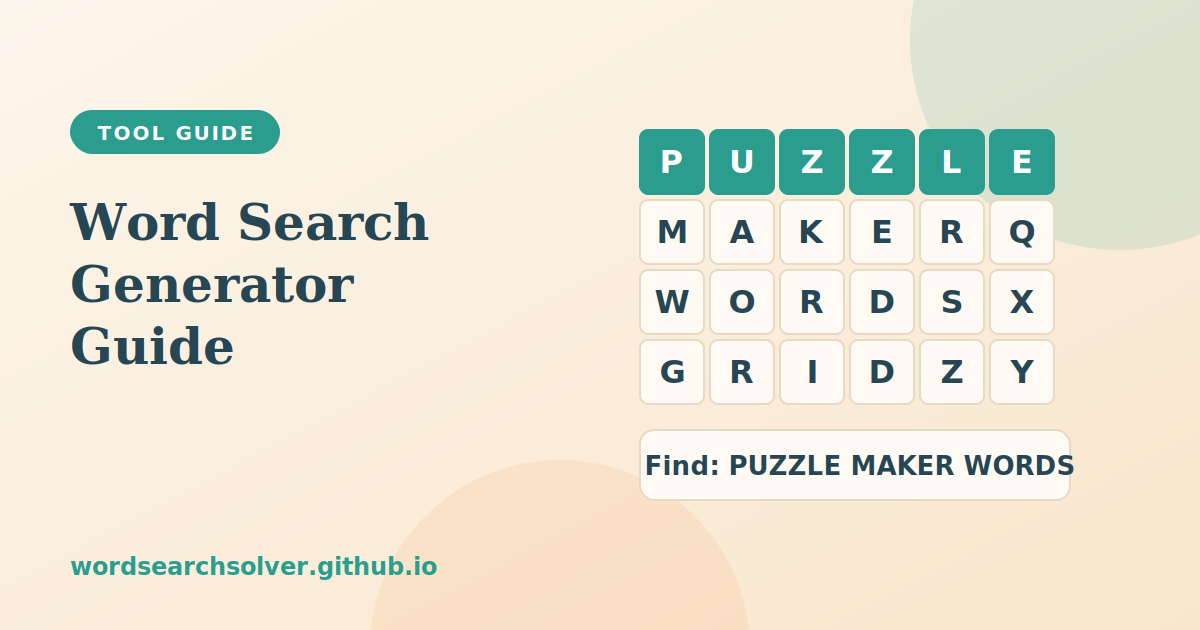
A good word search is more than a pile of random letters. It has the right number of words, a grid that matches the audience and a difficulty that keeps people interested without making them quit. Creating one by hand takes a long time. A generator does the placement and filling for you, so you can focus on choosing the words.
This guide walks through the Word Search Generator from start to finish. You will learn how the placement works, what each grid size and difficulty level does, how to choose words that make a great puzzle and how to prepare puzzles for classrooms, parties and activity sessions.
How the Word Search Generator Works
The generator uses a directional placement algorithm. It takes each of your words, picks a starting cell and a direction, and checks whether the word fits without clashing with letters already placed. Words are allowed to overlap only where the shared letters match. Once every word has a position, the generator fills all remaining empty cells with random letters.
The result is a complete puzzle with a hidden word list. In the preview, each word is shown in its own colour so you can see exactly where it was placed. When you print, the highlights are removed so you get a clean, high-contrast sheet that solvers can work on with a pencil.
Step-by-Step: Create Your First Puzzle
- Open the Word Search Generator.
- Type your words into the word box, or load a list from the built-in curated words if you need a quick starting point.
- Choose a grid size between 8 by 8 and 20 by 20.
- Choose a difficulty level: easy, medium or hard.
- Press the generate button and review the colour-coded preview.
- Print the puzzle for a clean version, or regenerate with different settings until you are happy.
The whole process normally takes under a minute. If you are making a set of puzzles, regenerate with the same word list to get a different layout each time.
Choosing the Right Grid Size
Grid size is the first lever you control, and it has a bigger effect on the puzzle than most people expect.
| Grid size | Best audience | Typical use |
|---|---|---|
| 8 by 8 to 10 by 10 | Young children and beginners | Short spelling lists, early readers |
| 12 by 12 to 15 by 15 | Most students and families | Classroom worksheets, party games |
| 16 by 16 to 20 by 20 | Adults and advanced solvers | Puzzle clubs, challenge puzzles, activity books |
A useful rule of thumb is to include about one word for every seven to ten cells of grid area. A 10 by 10 grid has 100 cells, so ten to fourteen words is a comfortable fit. Too many words make the grid crowded and force awkward overlaps. Too few make the puzzle trivial because the random filler letters give very little camouflage.
Understanding the Three Difficulty Levels
Difficulty controls which directions the generator is allowed to use when it places your words.
- Easy places words horizontally and vertically only, reading left to right and top to bottom. This is the right choice for young children and anyone new to word searches.
- Medium adds diagonal placements. The eye has to scan in more than two directions, so puzzles take noticeably longer.
- Hard uses all eight directions, including reversed words that read right to left, bottom to top and along backwards diagonals. This is the classic challenge format for adult puzzle books.
Reserve hard mode for confident solvers. Reversed and diagonal placements can frustrate young children and reduce the sense of fun. If you are unsure, generate an easy and a medium puzzle and see which suits the group.
How to Choose Words That Make a Great Puzzle
The word list matters more than any setting. A few principles make puzzles more engaging.
- Use a theme. Animals, holidays, science terms, book characters or event names turn a random puzzle into a learning activity.
- Mix lengths. Combine short words of three or four letters with longer ones of six to ten. Short words give quick wins, and long words make the grid feel substantial.
- Avoid near duplicates. If you include both CAT and CATS, solvers may find the shorter one inside the longer and wonder whether they have found two words.
- Check spelling twice. A misspelled word in the list will appear in the grid exactly as typed, and learners may remember it incorrectly.
- Remove spaces and hyphens. Multi-word terms should be joined, such as ICECREAM, because grids cannot contain spaces.
If you need ideas, the Random Word Generator can produce themed lists by category, length and starting letter. The guide to that tool shows how to use filters to build word sets quickly.
Ideas for Teachers, Parents and Event Planners
Because you control the words, the generator can serve very different audiences.
In the classroom
Teachers can turn vocabulary lists, spelling words, historical figures or science terms into review puzzles. They work well as bell-ringers at the start of a lesson, as early-finisher activities and as homework that feels more like play.
At home
Parents can build puzzles from a child's spelling words, favourite animals or the theme of a birthday party. Printed copies are ideal for car journeys, waiting rooms and rainy days.
At events
Wedding, baby shower and corporate event planners can create themed puzzles that double as place-setting activities. A puzzle with the guests' names or event keywords adds a personal touch.
For care and therapy settings
Caregivers and therapists use word searches as gentle cognitive exercises. Larger grids with fewer, shorter words and easy mode are usually the most comfortable.
Printing and Testing Your Puzzle
Always print one copy and solve it yourself before handing out a class set. This confirms that the difficulty feels right and that every word is findable. If it is too hard, regenerate on a lower difficulty. If it is too easy, add a few words or increase the grid.
For puzzles that will be used repeatedly, print on thicker paper so that erasing does not tear the page. Encourage solvers to use pencils. For a polished worksheet with a title line, student name line and a separate answer key page, move on to the Printable Word Search and read the printable word search guide.
If you want to check any puzzle, including ones from books or magazines, the Word Search Solver guide shows how to paste a grid and see every word located instantly.
Frequently Asked Questions
What grid sizes can I choose?
You can generate grids from 8 by 8 up to 20 by 20.
What is the difference between easy, medium and hard?
Easy uses horizontal and vertical words, medium adds diagonals and hard uses all eight directions, including reversed words.
Can I use my own words?
Yes. Type any words you like, or load a list from the built-in word list.
How many words should I include?
A good guide is one word for every seven to ten cells of grid area, so about ten to fourteen words for a 10 by 10 grid.
Can I print the puzzle?
Yes. The print version hides the answer highlights and gives you a clean puzzle sheet.