Printable Word Search Guide: How to Make Worksheets With Answer Keys
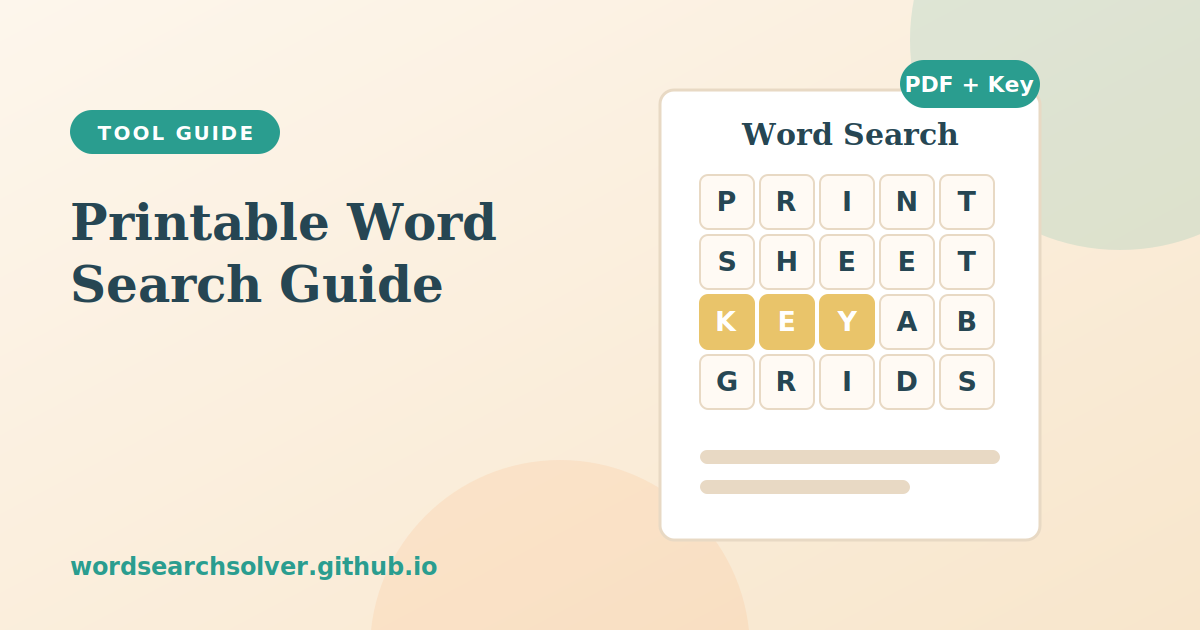
On screen, a word search is a fun diversion. On paper, it becomes a worksheet, a party activity, a page in a puzzle book or a quiet moment for a student. Getting a puzzle from the screen to a clean printed page is where many generators fall short, with headers, buttons and colours cluttering the output. A print-focused tool solves that problem.
This guide covers the Printable Word Search in detail: how the three templates differ, how to add a title and instructions, how the answer key works, how to save a PDF and how to prepare puzzles for classrooms and activity books.
Why a Dedicated Print Tool Matters
Printing straight from a normal web page usually produces a mess. Navigation bars, colour highlights, buttons and advertisements all compete with the puzzle for space, and the grid may be split across two sheets. A puzzle worksheet needs to look like it came from a published workbook, with a clear title, a legible grid and a word list that sits neatly beside or below it.
The printable tool is designed around that outcome. When you print, all headers, navigation and decorative elements are hidden, and only the puzzle and optional answer key appear. Font sizes, grid spacing and layout are tuned for standard A4 and US Letter paper, so you do not have to adjust margins or scale pages by hand.
Step-by-Step: Print a Word Search With an Answer Key
- Open the Printable Word Search tool.
- Choose a template: Classic, Compact or Large.
- Enter a title, an optional subtitle or instruction line and the words you want hidden in the grid.
- Choose your paper size, either A4 or US Letter.
- Generate the preview and use the answer preview toggle to confirm that every word is placed correctly.
- Press the print button for the student copy, or the print-with-key button for a teacher copy that adds the answer page.
- To create a file instead of paper, choose Save as PDF in the print dialog.
Choosing a Template
The three templates suit different purposes.
| Template | Character | Best for |
|---|---|---|
| Classic | Balanced grid and word list for standard worksheets | Classroom handouts and general activity books |
| Compact | Smaller layout that leaves room on the page | Puzzle collections that fit several items per sheet |
| Large | Bigger letters and wider spacing | Younger children, large-print audiences and care settings |
If you are not sure, start with Classic. Switch to Large when the audience includes young readers or anyone who benefits from bigger type.
How the Answer Key Works
The answer key prints on a separate second page. It shows the same grid as the puzzle, with every hidden word highlighted so that you can check solutions at a glance. The student copy and the answer key are intentionally separate sheets so that you can hand out the first and keep the second.
Before printing a full class set, use the preview toggle to look at the answers on screen. Confirm that every word on your list appears in the grid and that none are accidentally placed so that they form unintended words. Spending thirty seconds on this check saves time later.
Saving the Puzzle as a PDF
A PDF is the best format for sharing puzzles by email, uploading them to a classroom system or storing them for later. You do not need special software to create one. When the print dialog opens, change the destination to Save as PDF in Chrome or Edge, or choose PDF from the printer menu in Safari and Firefox. The result is a clean, paper-optimised file.
Name your files clearly, for example Chapter-5-Vocabulary-Word-Search and Chapter-5-Vocabulary-Answer-Key. Keeping the student and teacher versions in separate files avoids the embarrassment of sending the answers by accident.
Printable Word Searches for Classrooms
Teachers need worksheets that look professional without requiring design skills. A printable word search with a custom title, an instruction line and a name line fits standard classroom conventions and can be produced in minutes. Here are a few ways to use it.
- Vocabulary review. Build a puzzle from the words in a current unit, and add an instruction such as Find all the science terms below.
- Substitute plans. A ready-printed puzzle with an answer key is a dependable activity for a cover lesson.
- Seasonal activities. Create holiday-themed puzzles for the week before a break.
- Differentiated tasks. Use Large for students who need bigger print and Classic for the rest of the class.
- Homework that feels light. A themed puzzle makes revision less of a chore.
If you want to design the puzzle with more control over grid size and difficulty before printing, read the Word Search Generator guide, which explains those settings in detail.
Printable Word Searches for Activity Books and Party Packs
Content creators who produce activity books, party packs or puzzle collections can generate many different pages quickly. Each generation creates a different layout, so building a set of twenty unique puzzles takes minutes rather than hours. Choose a template that matches the publication style: Classic for standard pages, Compact to fit more content and Large for primary-school or large-print editions.
When assembling a book, keep a consistent title style, such as a theme name followed by a number. Place the answer keys in a separate section at the back and save every page as a PDF so that you can arrange the final layout in any publishing software. The tool states that the puzzles you generate may be used freely, including in worksheets and activity books, but you should not resell access to the tool itself.
Layout and Printing Tips
A few small choices make a noticeable difference to the finished page.
- Use a short title. One short line looks cleaner than a long sentence.
- Keep the instruction line brief. One sentence is enough, such as Find the words below.
- Choose black and white printing. The layout is designed for clean monochrome output, which also saves ink.
- Use thicker paper for repeated use. If solvers will erase, heavier paper survives better.
- Test one copy first. Print a single sheet before running a class set, and solve a few words to confirm that the print is legible.
If you would like to check a printed puzzle from any source, paste its grid into the Word Search Solver and read the Word Search Solver guide for tips on formatting grids correctly.
Frequently Asked Questions
Does the answer key print on a separate page?
Yes. When you choose print with key, page one is the clean puzzle and page two is the same grid with the words highlighted.
What paper sizes are supported?
Both A4 and US Letter. Choose the size before generating the preview.
How do I save the puzzle as a PDF?
Open the print dialog and choose Save as PDF as the destination, or select PDF from the printer menu in Safari and Firefox.
Can I add my own title and instructions?
Yes. You can set a title, a subtitle or instruction line and an optional name line for students.
Can I use the puzzles in a commercial activity book?
The puzzles you generate may be used freely, including in activity books and worksheets. Do not resell access to the tool itself.